


Most Shopify store owners install apps the same way they install browser extensions. See a problem. Find an app. Click “Add.” Move on.
Then six months later their store loads in seven seconds and they can’t figure out why conversion has dropped.
The average Shopify store now has 6 to 12 apps installed. Each one adds JavaScript, CSS, and HTTP requests to every page load. The cumulative effect: 2 to 5 seconds of added load time on a typical storefront. And every 1-second delay reduces conversions by around 7%.
Choosing the best Shopify apps isn’t just about features anymore. It’s about features and speed. This post walks you through how to pick the best Shopify apps for your store without quietly killing the performance that drives your sales.
The hidden cost of installing one more app
When you install a Shopify app, you’re not just paying the monthly fee. You’re paying a performance tax that compounds with every app already on your store.
Third-party scripts now account for 62% of the total JavaScript loaded on the average Shopify storefront. That’s not your theme, nor Shopify. That’s the apps you installed and forgot about.
The biggest offenders aren’t always the ones you’d expect:
- Live chat widgets: 200–400KB of JavaScript per page
- Review apps with photo galleries: 150–500KB
- Popup and email-capture tools: 100–300KB
- Page builders: 200–600KB
- Analytics and tracking scripts: 100–250KB
Stack four or five of those together and you’ve added more than a megabyte of JavaScript to every product page. On a mobile shopper using 4G, that’s the difference between a sale and a bounce.
This is the part of choosing Shopify apps that most “best Shopify apps” articles skip entirely. We’re going to fix that.
Step 1: Start with the problem, not the app
Before you search for the best Shopify apps in the App Store, write down the actual problem you’re trying to solve.
Be specific. “I want better marketing” is not a problem. “Customers are abandoning checkout at the shipping page” is a problem. “My product images are uploaded at the wrong size” is a problem. “It takes us too long to answer a customer’s question” is a problem.
Once you have the problem in writing, ask yourself one more question. Do I actually need an app for this, or do I need a better process? Half the apps installed on Shopify stores are duct tape over a missing standard operating procedure. The cheapest app is the one you never install.
If the answer is still “yes, I need an app,” continue. If not, save your money and your page speed.
Step 2: Use a 5-question evaluation framework
Once you know the problem, every candidate app must answer five questions. Think of this as your filter for finding the best Shopify apps — not just the most-reviewed, but the ones that are right for your store.
-
Does it solve the exact problem I wrote down? Not a related problem. Not a “nice to have”. The exact one.
-
What does it cost — including the speed cost? Monthly price plus expected load-time impact. An app that adds 800ms to your storefront is expensive, even if it’s free.
-
What do recent reviews say? Reviews from the last 90 days, not three years ago. Apps change. Teams change.
-
How does the team handle support? Test it during the trial. Email them. Time the response.
- What’s my exit plan? If this app doesn’t work out in six months, how easily can I remove it without breaking my theme?
Run every app through those five questions before you install. If it fails on more than one, keep looking.
Step 3: Check the speed impact before you install
When evaluating the best Shopify apps, this is the step almost no one does — and it’s the most important one.
You can test an app’s speed impact in about ten minutes:
- Run a baseline speed test on your store using PageSpeed Insights or GTmetrix. Save the score.
- Install the app and add it to a single test page (most apps let you toggle this).
- Wait five minutes for caches to clear, then run the speed test again.
- Compare. If the score dropped more than 5 points, the app is heavier than it’s worth — unless the feature is mission-critical.
Repeat the test on a mobile profile, not just a desktop. Mobile speed is where most stores quietly lose money, and where most apps do the most damage. For more on this, see our guide to Shopify speed optimization.
Step 4: Watch out for the “ghost code” problem
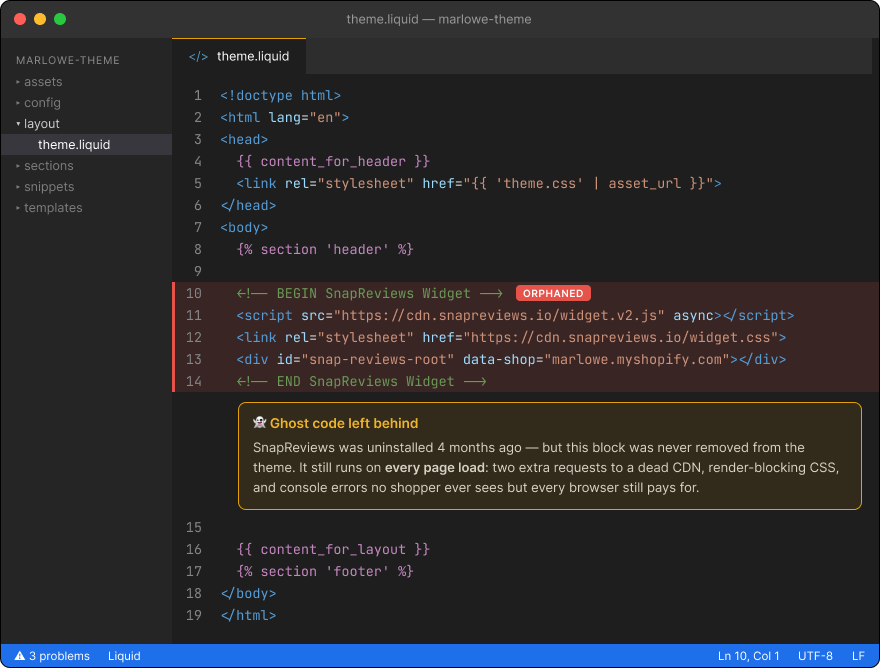
Here’s something the Shopify App Store doesn’t advertise. When you uninstall an app, Shopify only revokes the app’s API access. The code the app injected into your theme — Liquid snippets, JavaScript files, CSS blocks, ScriptTag injections — stays exactly where it was.
Translation: every app you’ve ever uninstalled is probably still loading on your store right now.
This is called ghost code, and it’s one of the top reasons stores get slower over time even when the owner thinks they’re cleaning up. Before you install any new app, accept that there’s a non-zero chance you’ll need a developer to remove its leftovers later.
The fix: stick with apps from well-established Shopify partners that publish clean uninstall instructions. The good ones tell you exactly what to remove if you ever leave. Pixc apps include uninstall instructions in our help docs for this reason.
Step 5: Free vs. paid — pick based on speed and support, not price
Free Shopify apps aren’t actually free. They’re often funded by upselling, tracking, or selling data, which can mean heavier scripts and more aggressive analytics calls.
Paid apps come with their own trade-offs. But a $19/month app with clean code and human support is almost always a better deal than a free app that loads a 400KB chat widget and never replies to your emails.
Here’s the rough rule of thumb we use:
Free apps make sense when:
- The feature is non-critical (nice to have, not core to sales)
- The app is from a reputable developer with a paid tier you could upgrade to
- You’d accept losing the feature tomorrow without missing it
Paid apps make sense when:
- The feature directly affects revenue (checkout, search, images, reviews)
- You need support that responds in hours, not weeks
- The app processes a lot of data, and you want fewer surprises about who has access to it
When it comes to the best Shopify apps, don’t pick on price alone. Pick on cost-benefit, speed, and support. That’s the trio that actually matters.
Step 6: Read reviews like a skeptic
User reviews are useful, but only if you read them properly. Star ratings hide more than they reveal.
When evaluating reviews on the Shopify App Store, do this:
-
Sort by most recent. Apps that were excellent in 2023 may have changed hands or fallen behind. Recent reviews tell you what the app is like now.
-
Read the one-star reviews carefully. Look for patterns. One angry customer isn’t a red flag. Twenty customers complaining about the same issue, is.
-
Check the developer’s replies. A team that responds to bad reviews thoughtfully usually responds to support tickets the same way. A team that doesn’t reply is a team that won’t reply to you either.
- Look for “speed” or “slow” in the search. Reviewers complaining about an app slowing their store down are telling you the truth, every time.
Step 7: Use the trial period to test, not to procrastinate
Most Shopify apps offer a 7-day or 14-day free trial. Most store owners install the app, get distracted, and let it auto-bill. That’s not a trial. That’s a subscription you forgot about.
A real trial looks like this:
- Day 1: Install, configure, run the speed test from Step 3.
- Day 2: Use the feature on a real product or page, not a dummy one.
- Day 3: Open a support ticket on purpose, even with a small question. Time the response.
- Day 5: Decide if you’d recommend it to another store owner.
- Day 6: Either commit, or uninstall before billing starts.
Calendar it. Otherwise the trial expires while you’re busy and you’ve just added a $49/month line item.
Step 8: Audit your existing app stack every six months
This is the step almost everyone skips. Your app stack should be a living thing, not a museum.
Every six months, sit down with your full list of installed apps and answer two questions for each one:
- Is this still solving the original problem I installed it for?
- If I were starting fresh today, would I install this app again?
If the answer to either question is “no” or “I’m not sure,” uninstall it. Then ask a developer to check your theme for ghost code from any apps you removed. A clean stack is faster, cheaper, and easier to debug when something breaks.
This single habit — twice a year, an hour each time — keeps stores fast for years.
How Pixc fits into your app stack
We built Pixc apps for store owners who care about speed.
Our apps run inside the Shopify admin, not on your storefront. That means they don’t add JavaScript or CSS to your customer-facing pages. They process images, alt text, and merchandising in the background, then push the finished output to Shopify. Your shoppers never see the work. They just see fast pages and clean photos.
You can browse the full set of apps here on Shopify. All of them are designed to do their work without costing you page speed.
Pick fewer apps. Pick better ones.
Choosing the best Shopify apps for your store is one of the highest-leverage decisions you make as an owner. Pick well, and your store stays fast, your team stays focused, and your conversions stay up. Pick badly, and you spend the next year wondering why nothing feels quite right.
The shortcut: solve the actual problem, run the 5-question framework, test the speed impact, read recent reviews, work the trial properly, and audit your stack twice a year.
The best Shopify apps aren’t always the most popular ones. They’re the ones that fit your problem, respect your speed, and don’t quietly cost you customers in the background.
For a deeper look at speed itself, head over to our Shopify speed optimization guide. And if you want to see what a lightweight app stack looks like in practice, browse the Pixc apps.